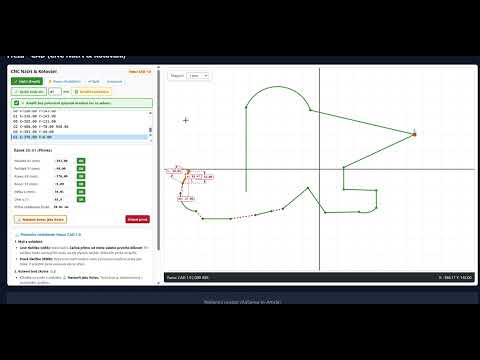
Milling CAD (CNC Sketch & Dimensioning)
📖 Fanuc CAD 1.9 user guide
1. Mouse and controls:- Left button (LMB): Draws the sketch. Starts exactly where you first click. If you start near an existing point, the new element connects to it. Click an element to select it.
- Right button (RMB): Moves the end point or moves the selected elements as a group. In an empty area it pans the drawing.
- Click an element and press ⚓ Set as anchor. This point is locked in the coordinate system.
CAD / CAM sketching and interactive G-code dimensioning
This tool is for quick sketching of part geometry, toolpath visualization and real-time coordinate editing. It supports drawing directly with the mouse, dimensioning elements and automatic G-code generation for Fanuc controls.
Complete guide and documentation: Milling CAD (CNC Sketch & Interactive Dimensioning)
Fanuc CAD 1.9 is a web-based parametric 2D CAD/CAM editor for quick sketching of part geometry, interactive dimensioning and instant generation of clean ISO G-code for CNC mills with Fanuc controls. Geometric calculations, transformations and arc interpolation run on the server core in real time.
1. Supported Fanuc syntax and generated G codes
| Code / Command | Meaning | Function and behavior in the CAD editor |
|---|---|---|
| G0 / G00 | Rapid traverse | Drawn as a red dashed line. The CAD inserts it automatically when you start a new contour away from the end point of the previous cut. |
| G1 / G01 | Linear cutting interpolation | Linear cutting path (solid green line). Created by dragging the mouse or by typing X and Y coordinates. |
| G2 / G3 | Circular interpolation CW / CCW | Clockwise (G2) and counterclockwise (G3) arcs. Supports radius programming R and incremental center vectors I, J. It also handles a full 360° circle when the start and end points coincide. |
| G90 / G91 | Absolute / Incremental | Switches the reference coordinate system used for toolpath calculation. |
| G15 / G16 | Cartesian / Polar coordinates | Server-side support for polar position input. |
| G52 | Local origin | Shifts the coordinate origin (X, Y). A blue coordinate cross marks the new local origin on the canvas. |
| G68 / G69 | Coordinate rotation / Cancel | Rotates the geometry around point X, Y by angle R in degrees; G69 cancels the rotation. |
| (KOTVA) / ANCHOR | Anchor point (lock) | A comment flag in the block. The point is locked: changes to neighboring elements are not transferred to it, protecting the chain from unwanted deformation. |
2. Complete overview of buttons, controls and modes
Switches between drawing mode with a crosshair cursor (LMB drags the sketch) and view mode, where you cannot accidentally add lines.
When enabled, lines and arcs are added to the code one after another immediately. When disabled, a dimension dialog opens after each stroke so you can enter the exact size.
Analyzes the length of all rapid moves (G0). If the gap between points is less than or equal to the set value (e.g. 5 mm), the G0 line is removed and the contours are joined into one continuous cut.
Topological program optimization: sorts the individual cutting segments (G1/G2/G3) using the nearest-neighbor method so that the tool does not travel back and forth unnecessarily, creating a logically connected toolpath.
Button Zpět deletes the last entered program block and redraws the scene immediately. Centrovat returns the camera to the default position at 1.2x zoom.
Clear resets the program to plain G90 and the zero origin. Delete element (or the Delete key) removes the selected line from the editor.
Snap step selection: 5 mm, 1 mm, 0.1 mm or Off. Rounds point coordinates while drawing and when moving nodes manually.
Locks the end node of the selected element in the coordinate system. An orange anchor badge appears on the canvas. This prevents the point from moving when you modify previous elements.
3. Intelligent shape recognition and interactive dimensioning
- Automatic arc vs. line detection: If you draw an arc with a sag greater than 12% of the chord length (with at least 6 sample points), the algorithm
fitCircle3Pointsfits a circle through the points and automatically generates the command G2 nebo G3 with radius R. - Orthogonal angle lock: If you drag a line within ±7° of the horizontal or vertical axis, the CAD automatically snaps it to the exact direction (0°, 90°, 180°, 270°).
- Drawing dimension lines (dimension labels): Clicking an element displays dimension lines with arrows and bubbles:
L:Actual length of the line or arc chord.ΔX:aΔY:Dimension increments along each axis.α:Line inclination angle in degrees (0–360°).R:Arc radius with the center point plotted.
- Direct dimension editing on the canvas: Click any red dimension bubble in the drawing to open an input field where you can overwrite the dimension and confirm with Enter.
- Linking graphics to the editor: Click a line to highlight its program line with a blue bar in the editor and open a parameter table in the left panel for fine-tuning start and end points.
4. Advanced mouse gestures and manipulation
- Left button (LMB): In sketch mode it draws a path. Click to select an element; with the
CtrlneboCmdallows selecting multiple elements. TheESCclears the selection. - Right button (RMB) on an end node: Lets you grab a node and change the end-point coordinates in real time (connected paths are recalculated automatically).
- Right button (RMB) on selected elements: Moves the whole selected group of elements as a single unit.
- Right button in an empty area or middle button (wheel): Pans the drawing. Turning the wheel zooms smoothly around the cursor position.
Demo: Drawing and Milling in the Online CAD Editor
Click the preview to play the video tutorial: how to draw a contour, edit dimensions and generate finished Fanuc milling G-code.